
What is Chroma Key Or Green Screen? Free CapCut Tutorial (2026)
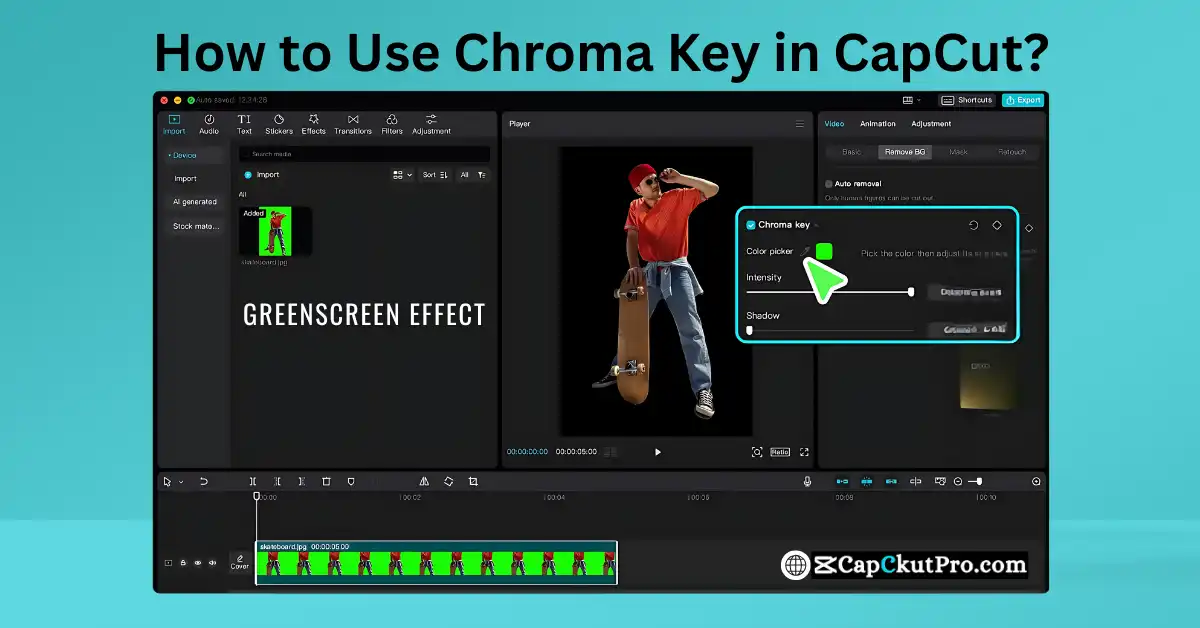
What is Chroma Key or Green Screen?
Green screen More specifically, chroma key technology, also called green screen or blue screen, is a visual effects technology utilized in video production and photography where monochromatic color is removed from one image or video stream and replaced with another video stream using the same color. This enables production of virtual sets, special effects and composite images in which the subject can be shown to be in one location yet it was filmed elsewhere.
Have you ever asked yourself how filmmakers easily green-screen? So did I. It is because of this reason that I plunged into the Chroma Key feature of CapCut. It is easy, user-friendly, and ideal in making your videos stand out. In this tutorial in 2025, I will guide you through the perfect settings needed to create the ideal uses of the green screen in CapCut so that anyone will learn to use its settings without difficulties. Enough talking, it is time to get to work!
How to Use Chroma Key in CapCut on Android Mobile
Step 1: Open the CapCut App
Tap the New project and choose your clips.
Step 2: Add Background First
Select your background clip (image or video) and place it on the timeline.
Step 3: Add Overlay (Green Screen Video)
Tap on the Overlay button and choose Add Overlay and the green screen video.
Step 4: Select the Overlay Clip
Tap the overlay, and the bottom editing menu will be opened.
Step 5: Tap on Chroma Key
Move the toolbar and press Chroma Key. Enter the color picker to tap the green background in your video.
Step 6: Adjust Intensity and Shadow
Move the Intensity slider to desaturate green, and adjust the Shadow slider to eradicate any greeny edges.
Step 7: Preview and Export
Tap on a quick preview and tap upon Export (top-right corner) to save your edit video in high resolution.
How to Use Chroma Key in CapCut on PC (Desktop)
Step 1: Open CapCut on your PC
Open the CapCut desktop software and click New Project.
Step 2: Import Your Clips
Click Import to add your green screen video, as well as your background picture or video.
Step 3: Drag Clips to Timeline
Drag your background clip on to the first video track then drop your green screen clip on top of the first track next to it on the second track.
Step 4: Select the Green Screen Clip
Click on the green screen clip and you will activate the editing options.
Step 5: Open Chroma Key Tool
Under the right hand side panel, locate the tab entitled, Chroma Key and click.
Step 6: Use the Color Picker
Click on the eyedropper icon and click on the green background on your video.
Step 7: Adjust Settings
Use the sliders for:
- Intensity – regulates the degree of the green removal.
- Shadow – fades outlines of green or color spill.
- Edge Feather/Blur – smooth the edges to get the natural effect.
Step 8: Preview and Export
To preview Click Play. When you are happy, press Export and select the resolution you want.
Pros & Cons
Pros:
The user-friendly GUI – convenient tool search and usage.
Auto- background detection – CapCut will do most of the work.
Manual knobs intensity Background intensity – control the fade and elimination of shadows.
Live preview – view the changes in real time.
No editing watermarkings in the videos you have your videos professional.
Cross-platform compatibility – it performs excellently on mobile and desktop.
Premium in a free app.
Cons:
Lighting should be just right to have a clean outcome.
When the backgrounds are cluttered then edge fringing can occur.
Facial mask types are restricted to simple backgrounds.
Best Settings for Flawless Green Screen Edits
Record with even lighting.
Make sure your green screen is not dim, and it has no shadow. This stops the spill of the colors and assists the Chroma key effect to identify and eliminate the green more properly.
Select the Chroma Key tool.
Click on the clip on the screen with the green, then go to chroma key. Now click on the color picker to choose the green color. The background green color will be automatically dropped with the help of the tool.
Adjust intensity and shadow.
Move the Intensity control until you have eliminated the green, but your subject is natural-looking. To remove the remaining green edges, use the Shadow slider.
Fine-tune the edge blur.
CapCut has the Julia tool to blur an edge, you should adjust it until the object fits in your new background as natural as possible.
Preview in real time.
Take the video to make the transitions proper and edges clear. Take minor adjustments.
Export settings matter.
Use a very high resolution (1080p or 4K) then pick a framerate, which suits your footage, so they do not get soft and amateur-like.
Tip:
No matter whether you run CapCut on PC or Android, the Chroma Key feature will operate the same. Just remember:
- You should film your green screen with even lighting.
- Refrain themselves to wear green.
- Export with 1080p or 4K to get the best.
Conclusion
The Chroma Key option provided by CapCut comes in the form of the fantastic balance between ease and capability. It is ideal to someone who would like to have green screen results without sophisticated software. The ease of use devices also allow you to crispen up the intensity, shadows, and edges to have a professional touch. Just remember to simply control lighting and background setting and you will get really good results each time. I strongly suggest you to see how it works.
You have understood how to use the Chroma Key tool on CapCut MOD APK in 2025 to make smooth green screens. Taking properly lit images with the tips mentioned, you can effortlessly raise your videos. This approach gives you professional-looking results in no time whether you are a newbie or an experienced creator.
Become a tester of CapCut with the Chroma Key feature and download CapCut now. Using such optimal settings, record and then edit a video and post your findings below. I cannot wait to watch your perfect green screen editing!
FAQs about Chroma Key in CapCut
How do you use chroma key in CapCut?
In order to apply Chroma Key in CapCut, you need to import your green screen clips, tap on the clip, and then tap Chroma Key, choose green color, and then adjust the Intensity and the Shadow till the background is removed neatly.
What is the chroma feature in CapCut?
Chroma tool in CapCut is a video editing software that allows taking away a certain background color (most likely it is the green or blue), leaving a video or an image in its place.
How to access chroma key?
You can find Chroma Key in CapCut by choosing the video clip and scrolling the toolbar, after which you should tap Chroma Key. Next, choose background color using color picker and set any setting you need.
Why is chroma key Pro in CapCut?
Sometimes powerful editing tools, such as Chroma Key, are marked with the Pro label in CapCut because the tool has such functionality, yet the feature can be freely used in most versions of the app.
Is chroma key in CapCut free?
Yes, Chroma Key is totally free in CapCut. It also can be used with no watermark or without having a high-level subscription.
How do you use chroma id?
CapCut does not provide any tool named Chroma ID. One tool you may be talking about is the Chroma Key which will enable you to clear green screens.
How to use chroma key effect?
In order to use the Chroma Key effect, it is required to import a video with a green screen, use the Chroma Key tool and select the green color, and adjust the Intensity and Shadow to remove the background easily.
How to apply green screen effects on CapCut?
Put your background video and overlay with your green screen video. The green should be taken off by using Chroma key and add to the background background effects such as blurs and transitions or filters.
How to chroma key 2 colors in CapCut?
CapCut only allows one color to be removed at a time especially with the Chroma Key. To key out two colours first export with the removal of a colour, then re-import and remove the other colour.
How to chroma key black in CapCut?
To chroma key black in the CapCut, open the chroma key tool and choose black as the color that the solution is altering, and change the intensity and shadow sliders until the background is vanished without interruption.


